Guides
How to Make a Codex Skin From a Photo Without Hiding the Work
A photo can become a skin in ten minutes. Making it readable after an hour takes a few more decisions.
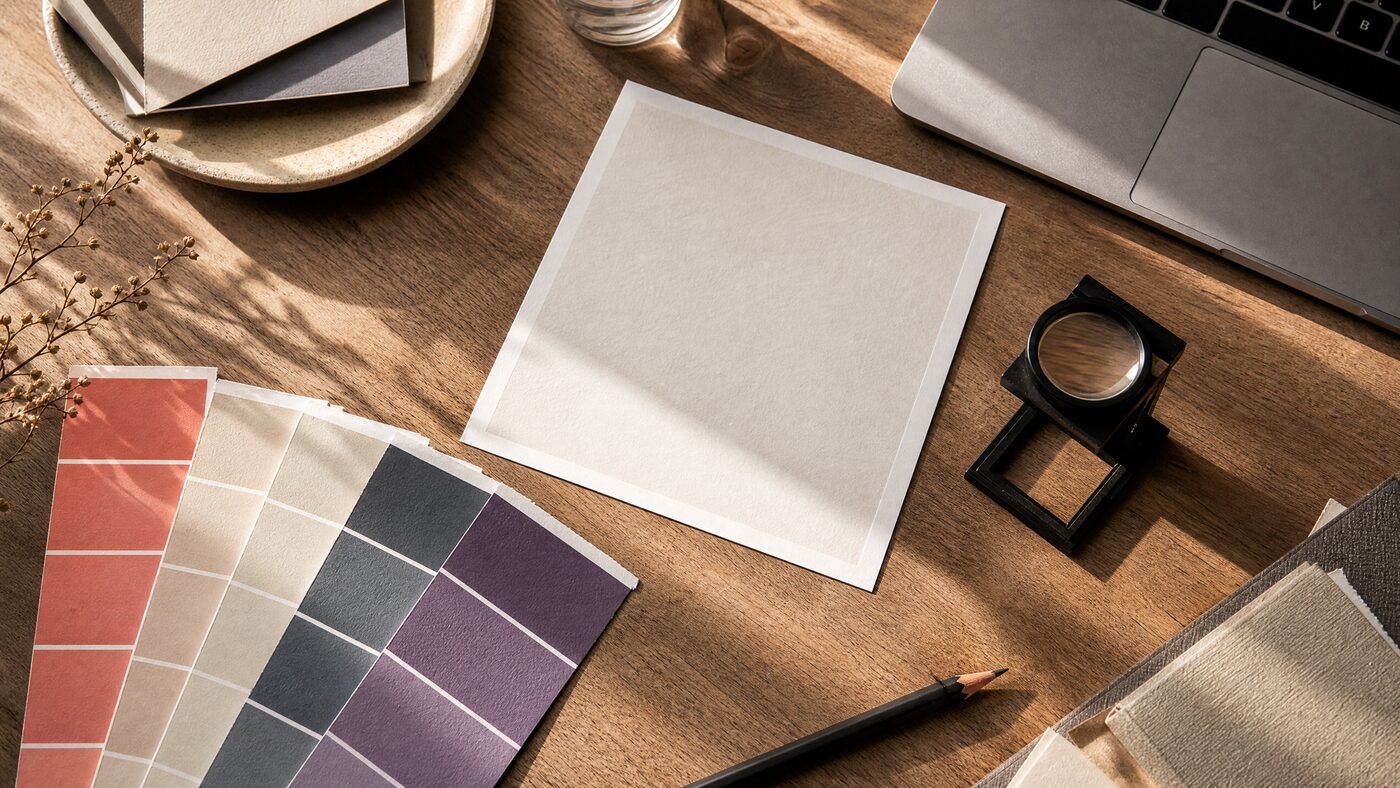
Quick answer
To make a Codex skin from a photo, use a rights-cleared image, crop it wide, move the subject out of the center, dim the background, check text contrast at 4.5:1 and export a data-only recipe. Then install through a reviewed engine and test a long task, a diff and the restore path.
Start with the rights, not the crop
You need the right to use the photo for the skin you are making. Personal use is one thing; publishing, sharing or selling a skin is another. A photo of a friend, a street portrait, a concert shot or a screenshot of a film is not automatically yours to redistribute.
The safest source is a photo you took, an image you commissioned with a broad license, or a generated image whose model terms allow the intended use. Keep the source and license note with the project so you can answer the question later.
Choose a photo that can survive a crop
A good skin photo is wide, simple and quiet in the middle. Landscapes, interiors and material studies are easier than portraits. If you use a portrait, place the face at an edge and keep the center for task text.
Avoid images with text, logos, hard contrast and small details in the center. They will fight every line of code. A photo that looks calm at thumbnail size is usually the better candidate.
Check the file before you fall in love with the composition. A screenshot of a photo, a heavily compressed download or an image with a watermark will not improve when it is enlarged. Prefer a file with at least 1600 pixels on the long edge, no text baked into the center and enough headroom to move the subject to one side.
Frame the reading column
Open the free studio and load the photo. Move the image until the subject sits outside the central reading column. Use horizontal and vertical position before you crop; you can always replace the image later without losing the settings.
The center does not need to be empty. It needs to be quiet: low local contrast, no text, no faces and no hard edges. A soft gradient or a dark area works better than a busy middle that you try to rescue with blur.
Dim first, blur second
Dimming is the most useful control in the studio. It reduces the image's luminance without destroying its structure. Blur is a second tool, not a first resort; too much blur turns the background into a muddy color field and makes the panel feel dirty.
A practical order: set the crop, raise dimming until the text reads, then add a small amount of blur if the background still competes. Panel opacity is the final adjustment. If the panel disappears, increase opacity before adding more dimming.
Measure contrast, then trust your eyes
The studio measures text contrast against the surface and control contrast against the accent. Aim for 4.5:1 for normal text and 3:1 for UI controls. Those are minimums, not targets. A comfortable reading theme often sits higher.
Numbers do not catch everything. Warm colors can look brighter than they measure, and a busy image can make text feel noisy even when the ratio passes. Look at a dense diff and a long paragraph, then adjust.
Free contrast checker
Measure the pair before you export.
Export the smallest artifact that reproduces the look
The studio can copy a native color theme and export a declarative recipe. The native theme is the simplest share; the recipe adds the background image and settings. Neither should contain executable code.
Check the archive before you share it. A data-only recipe contains a manifest, theme settings, a WebP background, a preview, a license note and a digest. If you see JavaScript, shell commands or an installer, stop and treat it as software.
Install through a reviewed path
Installation is separate from creation. Use the upstream platform entry for your OS, read the current instructions and verify the official app. Do not modify app.asar, the code signature, API keys or provider settings.
After install, open Home, a long task and a diff. If the text still reads, the skin works. Then run the restore flow once. A skin that cannot be removed is not a finished product.
Write down the exact engine version, the theme name and the date of the install. When a later update changes the surface, that note is the difference between a five-minute restore and an afternoon of guessing. It also tells a buyer what they are actually installing and which version to compare when a bug report arrives.
Six mistakes that ruin a photo skin
Every one of these is fixable in the studio, and every one becomes expensive after installation. The pattern is the same: decide with the real surface, not the thumbnail.
- Using a photo you do not have the right to share.
- Putting a face or a high-detail subject behind the task text.
- Using blur to rescue a busy composition instead of moving the crop.
- Choosing an accent color that fails control contrast.
- Exporting a recipe without testing a real diff.
- Skipping the restore check because the preview looked fine.
FAQ
Can I use any photo for a Codex skin?
No. You need the right to use the photo for the intended purpose, especially if you publish or sell the skin. Use your own photo or one with a license that covers redistribution.
What size photo should I use?
Use a wide image with a long edge of at least 1600 pixels. A 16:10 or wider composition gives the panels room without stretching the subject.
Does the studio upload my photo?
No. Decoding, cropping, palette extraction, preview and packaging happen in your browser. The image is not sent to CodexSkin.
How much blur should I use?
Start with none. Raise dimming first, then add a small amount of blur only if the background still competes. Too much blur creates muddy color and hides the image's structure.
Can I sell a skin made from my photo?
If you own the photo and the skin does not reproduce someone else's character, brand or artwork, you may be able to. Check the license and the platform terms before selling.
What if the text is hard to read after export?
Raise dimming or panel opacity, reduce background detail in the center and increase text contrast. Re-export and test a dense diff before installing.
Sources and further reading
Next step
Try the free studio
Every guide is easier to follow with a real image. Open the studio, load a preset and test the three surfaces.
More guides
Read next
Codex Skin Safety: The Checklist Before You Run Anything
A theme is decoration. The moment it asks for shell access, it is software. Treat it that way.
Codex Theme Contrast: A Practical Guide for Readable Skins
Contrast is not a score you maximize. It is a range you tune until the work stays comfortable.
Best Codex Themes in 2026: Six Picks That Survive Real Work
A theme should be judged after a long task, not after a screenshot. Here are six directions, the criteria behind them and the failures we reject.